Certificate program
How to earn
your certificate.
Choose your certificate, prepare and record the required pieces, and submit them for review. Once your requirements and final approval are complete, receive a personalized PDF certificate.
Browse certificates before signing up. An account is required to submit performances.
About the certificate program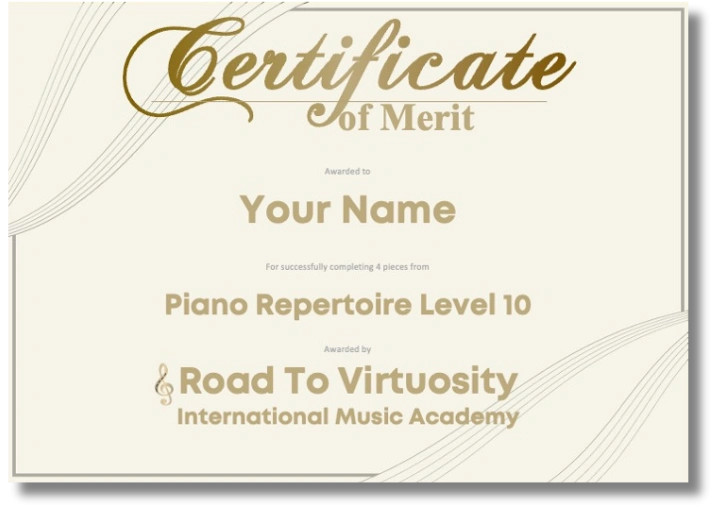
Step 01
Choose your certificate
Find a level, composer, or collection you want to work toward. Open View to check the requirements before you begin.
- Review the eligible pieces and how many you need to complete.
- Check the certificate fee in USD.
- Create a free account to connect submissions and progress to your profile.
Merit and Virtuosity certificates can require different amounts of repertoire. Use the requirements for your chosen certificate as your guide.
Browse certificates →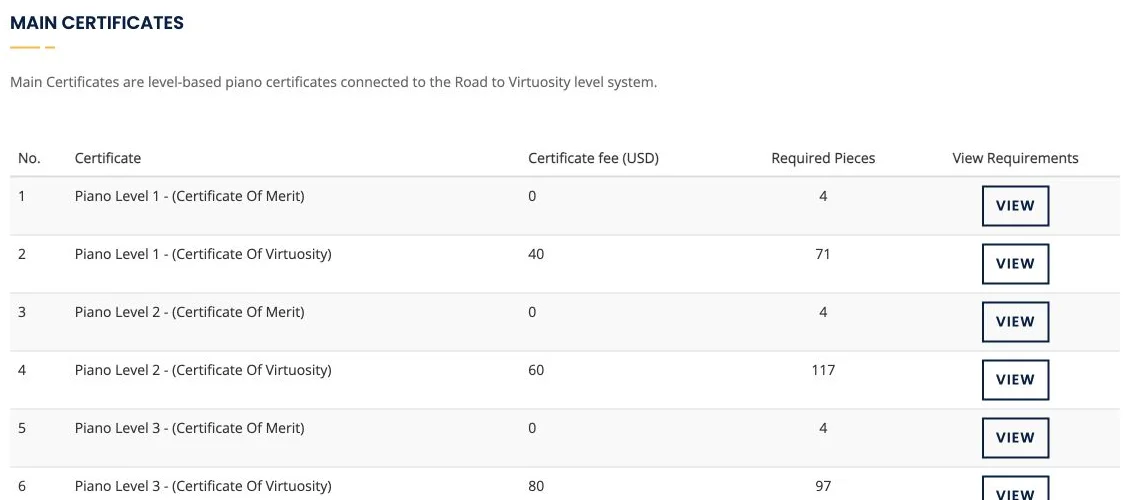
See an example requirements page
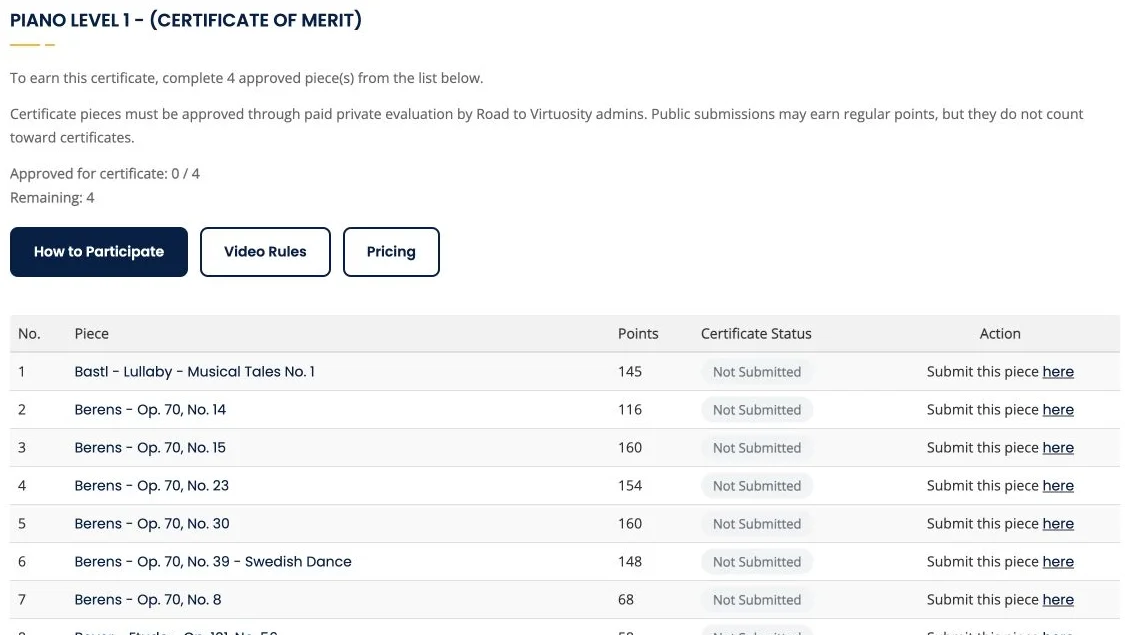
Open a piece from the requirements list to find its music and submission section.
Step 02
Prepare and record
Practice each required piece until you can give a complete, prepared performance. Minor mistakes are acceptable; repeated breakdowns or missing sections need more practice.
Before you press record
- Keep the student, hands, and keyboard visible throughout.
- Check that the audio is clear and easy to hear.
- Record the full piece in one continuous take.
- Use the correct piece, arrangement, and title.
What your camera should see
 Enlarge image ↗
Record one complete take, with no cuts or edits.
Read all video guidelines →Step 03
Submit your video, one step at a time
Have your recording ready. Follow the pictures below to send it for certificate review.
Tap a picture to enlarge it. These are example screens; use your own performance video.
Open your piece and find “Submit Video”
Open the piece from your certificate’s requirements list. Scroll down to Submit Video. If you see Login First, sign in, then return to the piece.
Open the certificate list →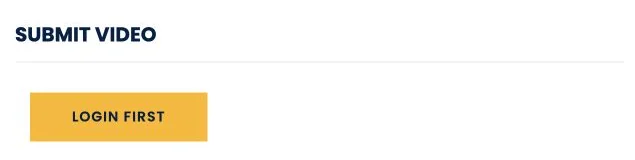 Enlarge image ↗
This is the starting point on a piece page. The submission form appears after you sign in. Choose where your video is
On your phone or computer? Choose Upload Video File.
Already on YouTube? Choose Youtube Link.
Record your performance on your phone, camera, or recording app first, then upload the saved video file or add its YouTube link.
Add your recording
Follow the instructions for the method you chose.
If you chose Upload Video File
Select Choose video file and pick your recording. Check the file name and follow the file-size and length limits shown.
 Enlarge image ↗
Select the recording of this piece from your device. If you chose Youtube Link
Paste the link to your performance into Add Youtube Link. Use the video’s link, not the link to your whole channel. Make sure reviewers can open it.
 Enlarge image ↗
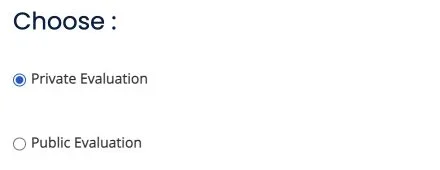
Paste your performance video’s link into this box. Select “Private Evaluation”
This is the option that lets an RTV admin review your performance for a certificate.
Check that the circle beside Private Evaluation is selected. Uploaded files use private evaluation.
Public Evaluation does not count toward a certificate.
 Enlarge image ↗
For certificate credit, choose Private Evaluation as shown. Choose “Go to Checkout”
Check that you have the right piece, video, and evaluation option. Then select Go to Checkout.
Review the charge on the next screen before paying. Younger students should ask a parent or guardian to help with this step.
After submitting, check your account for the review result and feedback.
 Enlarge image ↗
This button takes you to the next step. Review the amount before completing payment.
Step 04
Receive your certificate
Return to your certificate’s requirements page to check your approved pieces. When the required number is complete, follow the finalization and payment prompts shown there.
After final approval and PDF creation, your personalized certificate is available in My Purchases and your library’s Certificates section.
If you see “PDF temporarily unavailable,” the achievement is still recorded. Contact us for help with the download.
Your final checklist
A record of repertoire
you have earned.
- Required pieces approved by RTV admins
- Certificate finalization completed
- Personalized PDF ready to download
Keep a copy to celebrate your progress and share your achievement.
Good to know
Before you begin
Is taking part free?
Creating an account is free. Certificate fees vary and are listed in USD. Private evaluations have separate charges. Check the amount shown before each checkout, including when the certificate itself is listed at $0.
Which certificate should I choose?
Start with a level or collection that matches the repertoire you are ready to learn. Compare the eligible pieces and required count. Merit generally covers a selected group; Virtuosity can require a much larger collection. The individual certificate’s requirements are the deciding reference.
Can I use a public submission or my teacher’s approval?
Certificate performances must receive RTV admin approval through private evaluation. Public submissions and private teacher approvals do not automatically qualify.
How long does review take?
A fixed turnaround is not published in this guide. Check your account for the review result, or contact RTV if you need a timing estimate before submitting.
What if my performance needs more work?
Read the reviewer’s feedback and prepare the requested improvements. Confirm the resubmission process and any additional charge with RTV before sending another evaluation.
Where do I download my certificate?
After final approval and PDF creation, sign in and open My Purchases or the Certificates section of your library. If the PDF is temporarily unavailable, contact RTV for help.
Choose your next achievement.
Find the repertoire you want to make your own.